In SSO settings you can generate a new Service Provider (SP) certificate with a single click. Graphlytic uses this certificate to sign SAML requests sent to the Identity Provider (IdP).
1. When to rotate
Initial SAML SSO setup (no SP certificate exists yet).
Scheduled security rotation according to your internal policy.
Suspected compromise of the private key.
Migration to a new IdP that requires fresh metadata.
1.1. Procedure
Open Application Settings → SSO and click Rotate (on first setup the button is labeled Generate keystore).
1.2. Confirmation
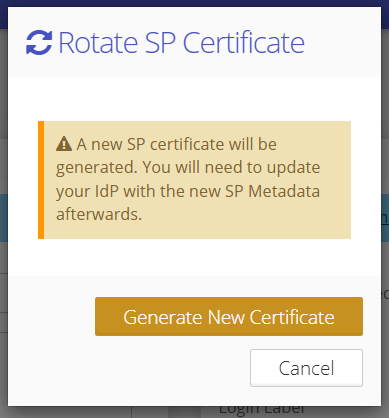
A warning is shown that the SP certificate on your identity provider will have to be updated afterwards.
This means any IdP configured with the old Graphlytic certificate will reject signed SAML requests until you supply the new metadata.
Click Generate New Certificate to proceed, or Cancel to abort.
1.3. Result
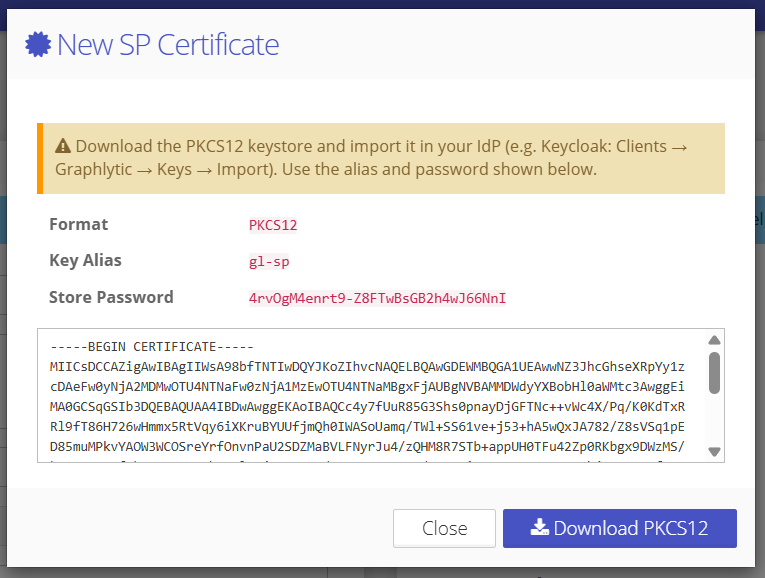
After confirmation, Graphlytic:
Generates a new RSA 2048-bit key pair and a self-signed certificate valid for 10 years.
Persists the keystore in the database.
Immediately starts using the new key for SAML communication (no application restart required).
▎ Important: The .p12 download is available for only 15 minutes after rotation. After that, the download is disabled. SAML SSO itself keeps working — the keystore stays in the database, you just can't export the raw .p12 file anymore.
▎ If you miss the password and the download window expires, run the rotation again.
1.4. What to do after rotating
Copy the new SP certificate from the SP Certificate (PEM) field (or download the full .p12 keystore).
Update the IdP — upload the new SP metadata / certificate on the Identity Provider side. Without this step, users will no longer be able to sign in via SAML.
Test SSO login with a test account before closing the window.